
News
- Jan. 13, 2025 Honda RoadSync Duo app is now available.
- Nov. 27, 2024 Added service details.
- Nov. 27, 2024 Updated information on planned compatible models.
- Oct. 09, 2024 Honda RoadSync Duo global web site open.
Discovering a future with Honda RoadSync Duo
Makes your everyday journey evenmore comfortable and joyful.
Connect a New Riding Experience
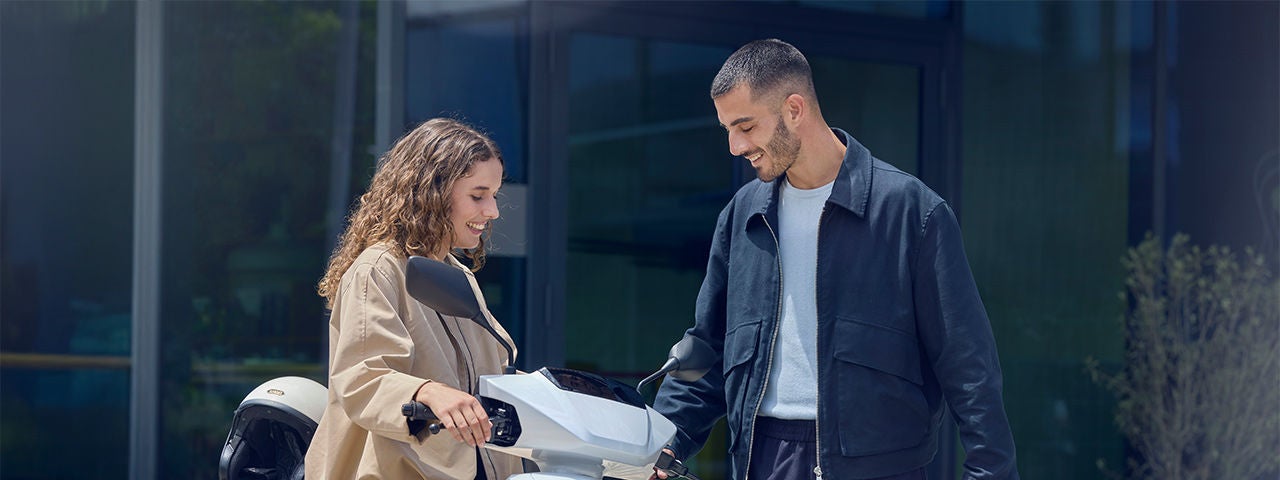
Honda RoadSync Duo®*1 is a unique service made available by Honda for the rider to access functions such as navigation systems, music control and phone calls by connecting the motorcycle and smartphone via Bluetooth®*2. This service always supports your ride wherever you travel.
It continues to evolve your motorcycle through software updates for the latest functions, staying by your side once start your journey.
Honda RoadSync Duo® makes your riding experience more delightful and changes your everyday route to something special.
The simple and refined UI as well as the intuitively operable multi-switch on the left side of the handlebar allow riders to operate various functions using only their fingertips even when riding.
Furthermore, riders do not feel any worries in everyday use, thanks to functions that constantly monitor the motorcycle’s conditions and suggest the most appropriate actions.
You can use the service with peace of mind in any region as Honda RoadSync Duo® also provides language localization according to your region.
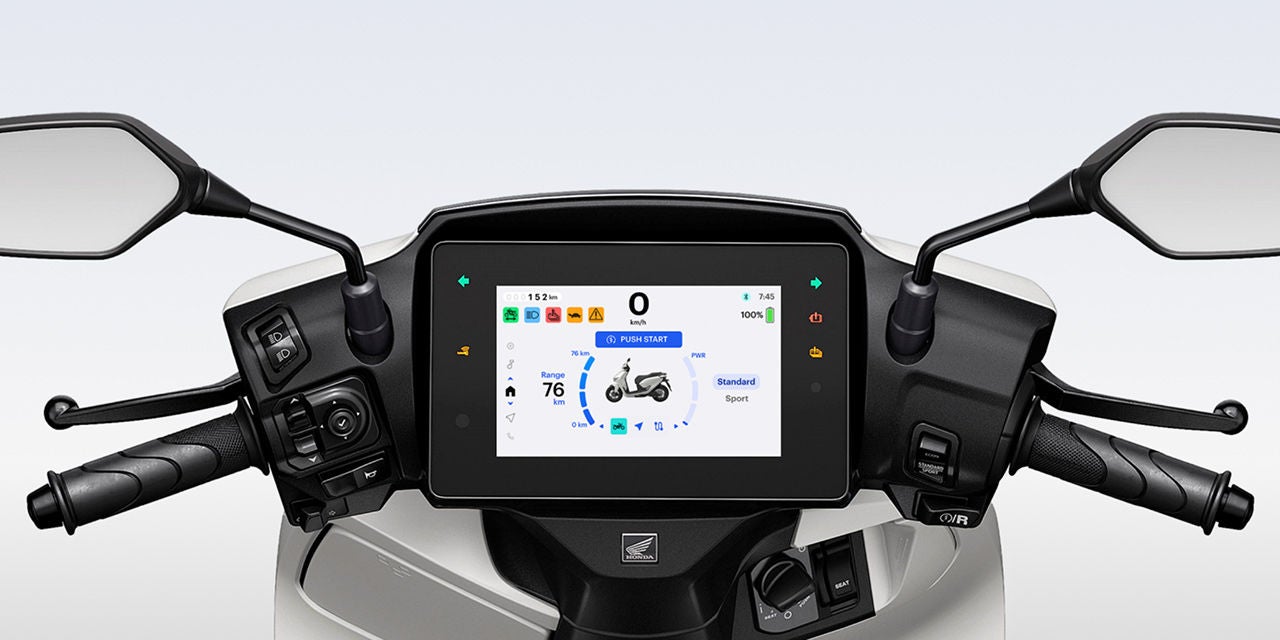
*1 The use of Honda RoadSync Duo® requires a compatible motorcycle and a dedicated application to be installed to a smartphone.
*2 Bluetooth® is a trademark of the US Bluetooth SIG, Inc.
Suggestive navigationis
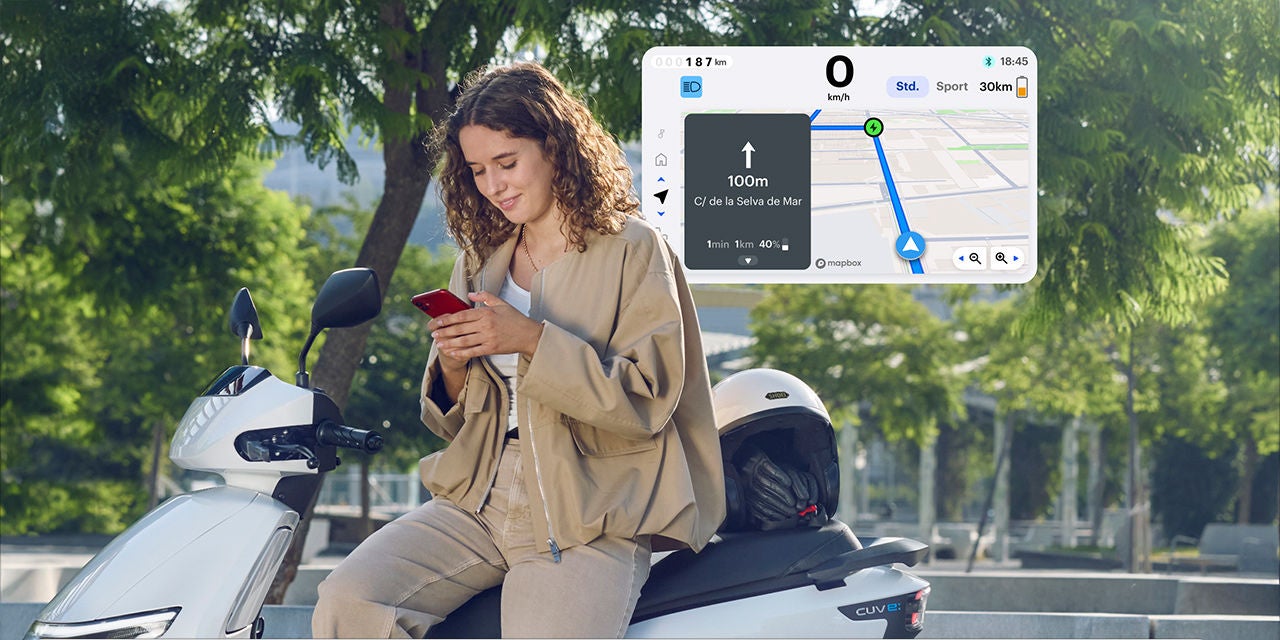
The system suggests optimal route to the destination and automatically guides to a battery swapping station*3 if there is not enough battery. Using a smartphone brings greater convenience in terms of setting destinations and voice navigation. Enjoy smooth riding without interruptions.
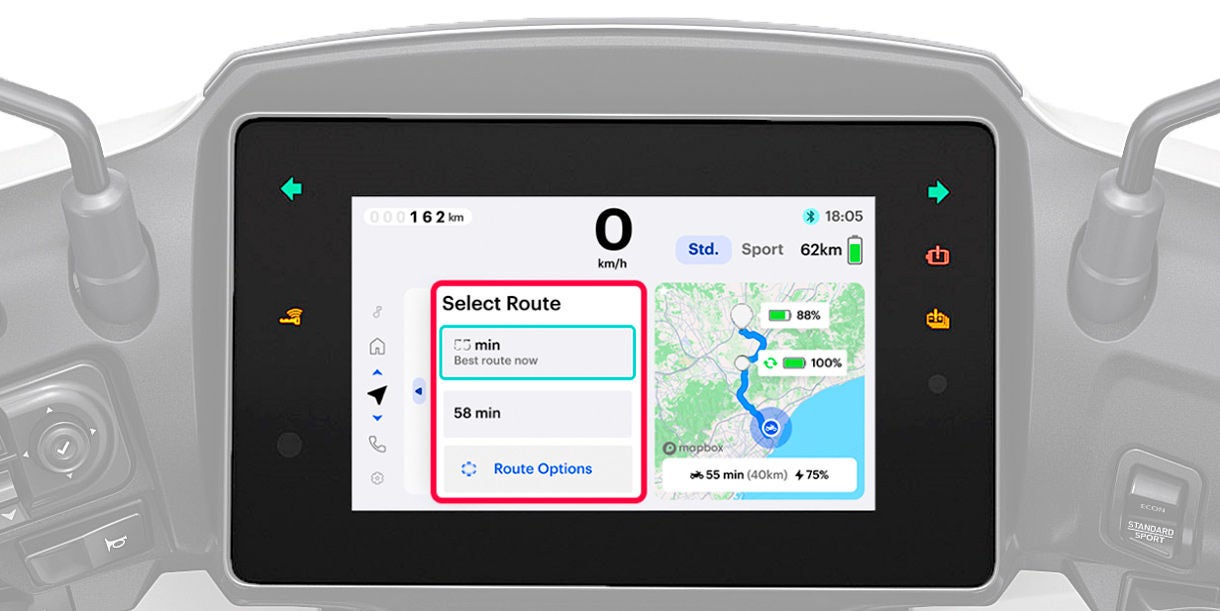
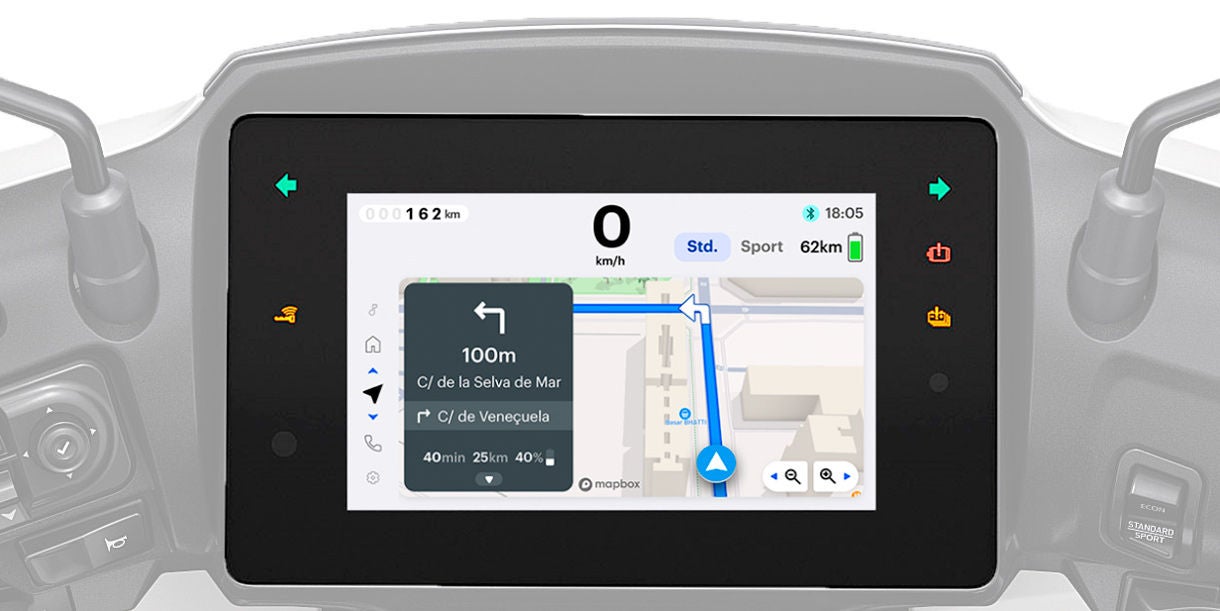
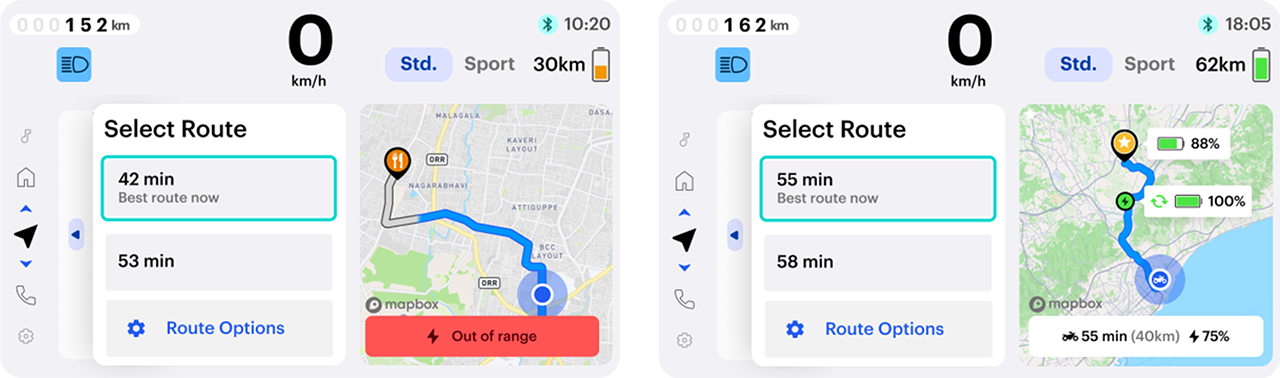
Select the optimal route
After setting the desired destination, the latest navigation system instantly suggests Optimal route and provides the rider with stress-free guidance to the destination. The motorcycle’s instrument allows everything to be carried out, from searching for routes to starting of guidance. Guidance can be started immediately without need for tedious operations.*4
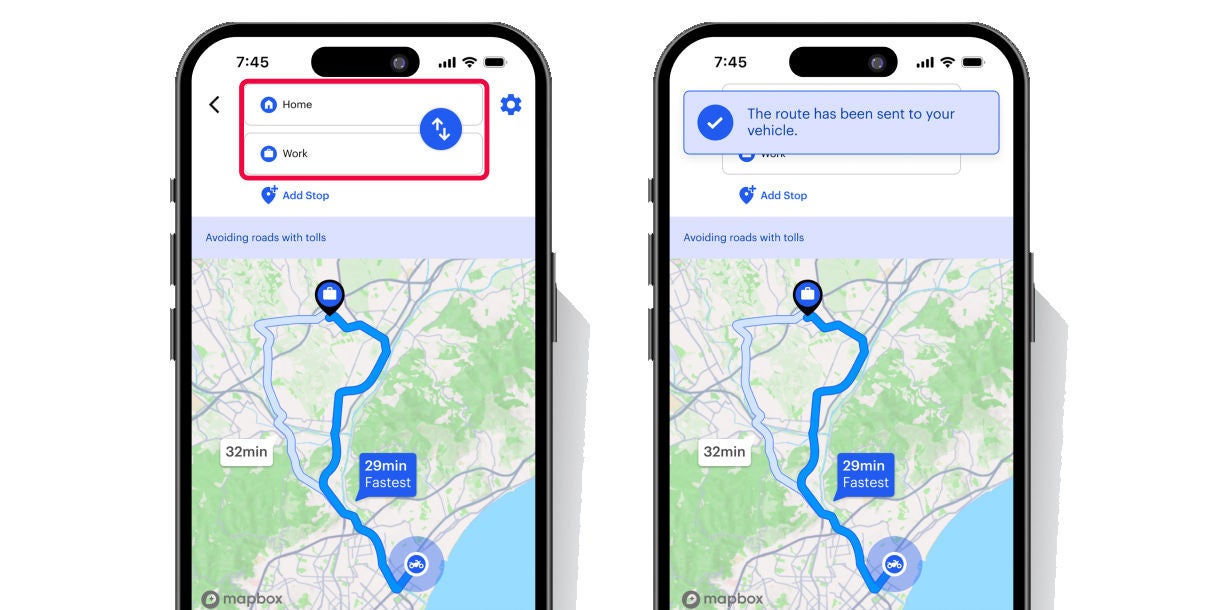
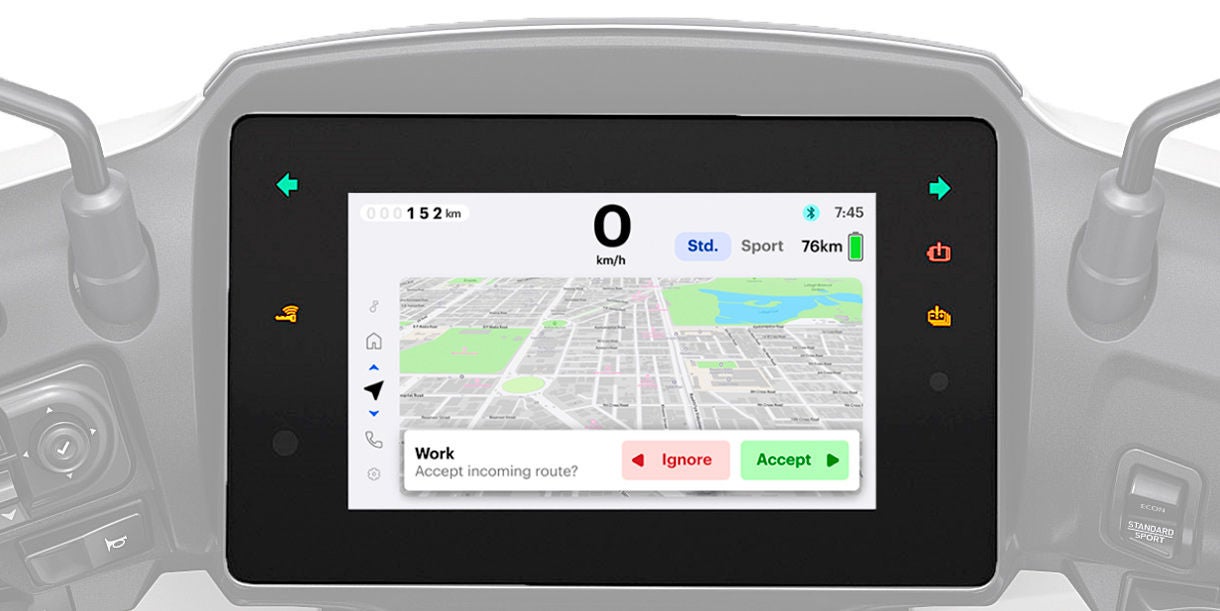
Greater convenience through connecting with smartphone
The destination can be easily set by using Honda RoadSync Duo App to search for routes before riding. Connecting a Bluetooth headset, etc. to a smartphone enables the rider to confirm the route via voice Guidance.
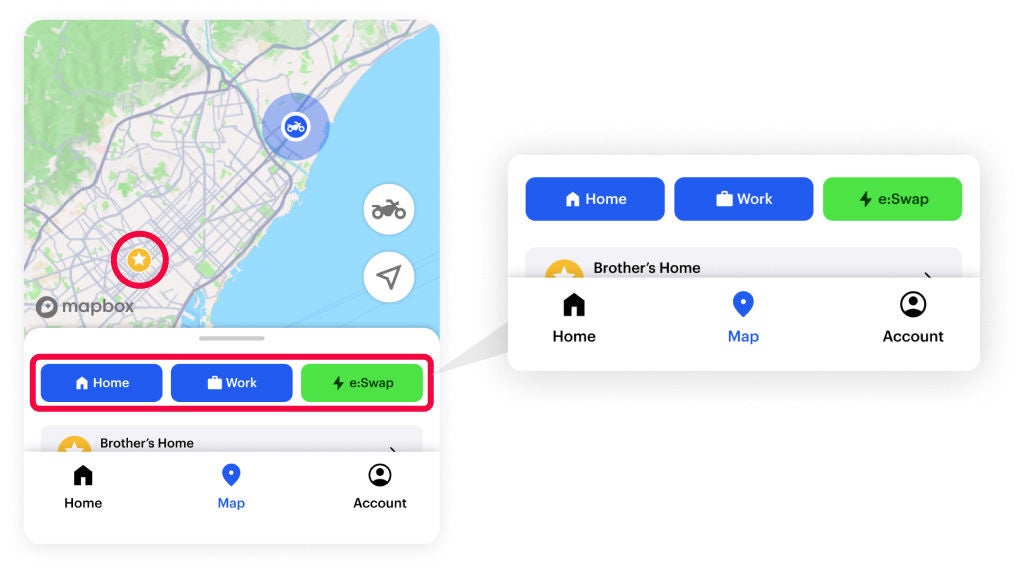
*3 Battery swapping stations are located in limited areas.
*4 Requires the motorcycle to be connected to the smartphone App once and maps to be cached
Music
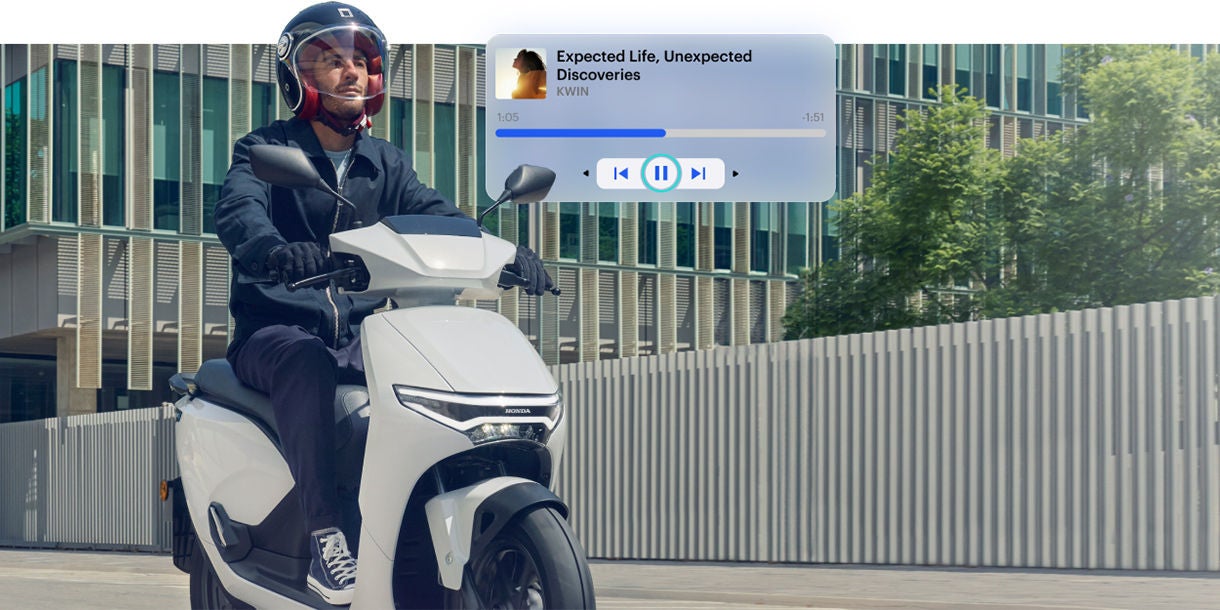
You can play your favorite music stored on your smartphone with an intuitive button press. Additionally, the meter can display the song title, artist name, album cover, and other information about the music being played. The connection of a Bluetooth headset and such to a smartphone enables you to enjoy your playlists even when riding.
Phone calls
The rider can make or receive phone calls with a simple button press without getting distracted during the ride. By registering contacts as favorites on the application in advance, the rider can easily make calls by just operating the switches on the vehicle side. The connection of a Bluetooth headset and such to a smartphone enables the rider to communicate while enjoying the ride.

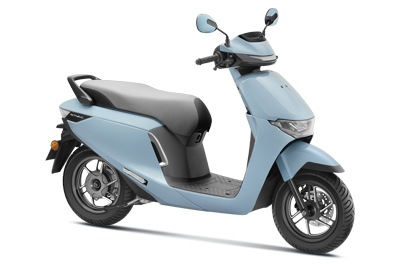
Compatible models
*Honda RoadSync Duo can only be used with compatible models.
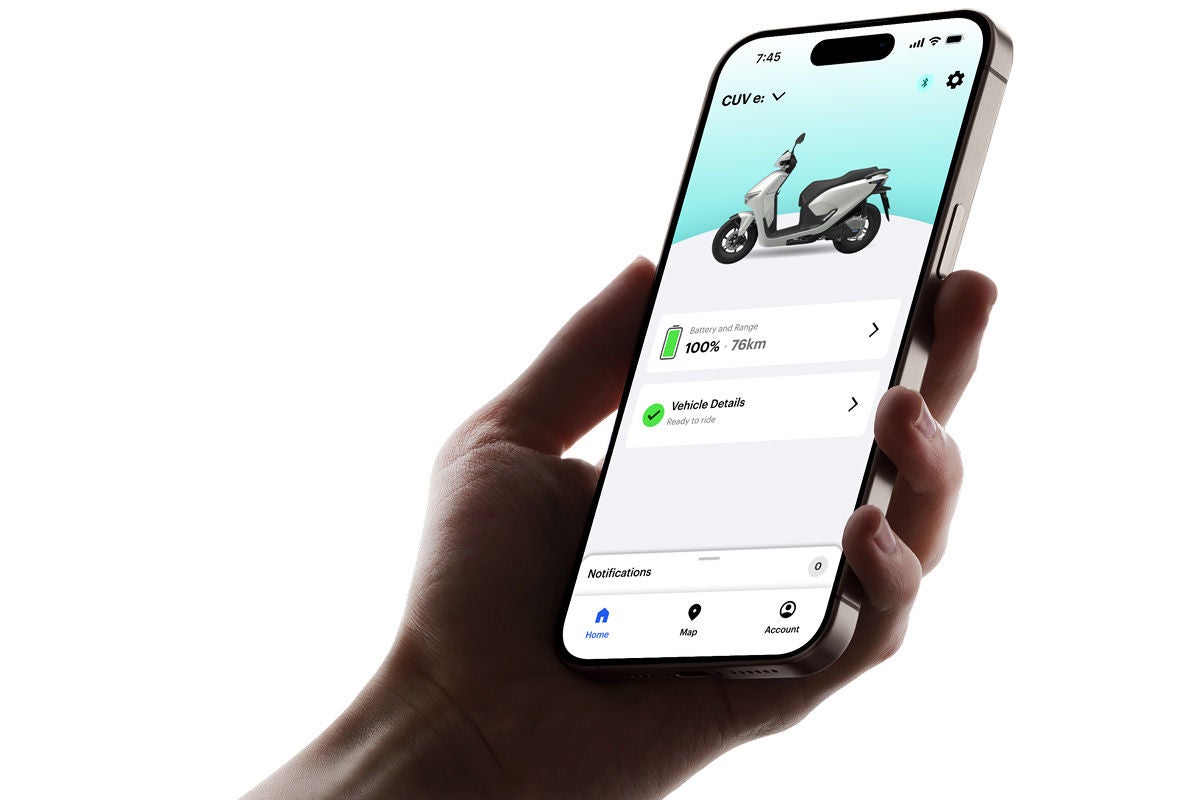
What you can do with the Honda RoadSync Duo smartphone app
Android and iOS versions are available
Privacy Policy & Terms of service
FAQ
Frequently Asked Questions about Honda RoadSync Duo
- Vehicle Dashboard
- Companion App
- Q
- Q
-
A
Once you have downloaded "Honda RoadSync Duo App", you can share your phone’s internet sharing by enabling Bluetooth.
Alternatively, you can also share your phone’s internet sharing by enabling Wi-Fi.
The vehicle has onboard Wi-Fi. You can go to Settings > Wi-Fi and choose the appropriate Wi-Fi network. - Q
-
A
In the rare case where you can’t share your hotspot with the vehicle try restarting your phone. It should allow you to share the hotspot connection again.
- Q
-
A
If you turn off Bluetooth from your phone's settings, the system will not display a notification message to remind you. You will need to manually check your phone's Bluetooth settings and turn it back on to reconnect.
- Q
-
A
On some occasions, your phone might not automatically reconnect to the vehicle after turning off and on your phone. If this happens, check your phone’s Bluetooth setting and manually reconnect through "Honda RoadSync Duo App".
- Q
-
A
Notifications from "Honda RoadSync Duo App" are deemed as critical information about your vehicle therefore you will still receive notifications while you are signed out of "Honda RoadSync Duo App" in order to ensure you have the latest information about your vehicle.
If you want to stop receiving notifications you can delete the App from your device or directly restrict the notifications from the App settings. - Q
-
A
To use the vehicle’s connected features, you need to ensure your mobile network is turned on before attempting to reconnect or use these features.
- Q
-
A
Forgetting the Bluetooth connection on your phone only removes the pairing from the phone's side; it does not disable or change the vehicle’s Bluetooth status. If you want to completely reset the Bluetooth connection, you may need to unpair your vehicle.
- Q
-
A
Using the dedicated the Riding mode switch, you can toggle between the different running modes, Econ, Standard, and Sport.
- Q
-
A
You can view the battery range in the 7-inch display of the vehicle.
- Q
-
A
After connecting your vehicle to "Honda RoadSync Duo App" via Bluetooth or the internet via Wi-Fi, the map will be downloaded. You can navigate applications by clicking up or down until you get to the Navigation app.
- Q
-
A
You can plan a route in multiple ways
1. From "Honda RoadSync Duo App", push “e:swap”, you can find and navigate to charging stations 10km from your current location.
2. From “recent”, you can navigate from recent destinations.
3. From the navigation menu on the 7-inch display. - Q
-
A
Using the map in your Honda RoadSync Duo App, you can send the route information to your vehicle.
- Q
-
A
Ensure that your phone is connected to your vehicle. Open "Honda RoadSync Duo App"
Start a navigation session, then you should hear audio instructions. - Q
-
A
Check the connection between your phone and the vehicle.
Make sure “unmute directions” is not on once you start a navigation session
Ensure that your headphones or bluetooth audio devices are connected to your phone.
- Q
-
A
When pairing "Honda RoadSync Duo App" with the vehicle, please grant access to Calls.
You can also grant permissions in "Honda RoadSync Duo App" by going to Settings > Media permissions - Q
-
A
Your favorite contacts are coming from your phone’s phonebook. These will be shown in your vehicle’s dashboard. Make sure they are listed in the Favorites section of your phone to see them on the 7-inch display.
- Q
-
A
You can’t change the volume of a call from the 7-inch display.
- Q
-
A
While in an active call, go to the Call app on your 7-inch display and press left.
You can also long press the left button to end a call. - Q
-
A
Check the connection between your phone and the vehicle.
Make sure “unmute directions” is not on once you start a navigation session
Ensure that your headphones or bluetooth audio devices are connected to your phone.
- Q
-
A
When initially pairing your phone to your vehicle, please grant permission to the app to access your music.
You can also grant permission through the Honda RoadSync Duo app Settings - Q
-
A
India : Spotify , YT Music , Apple Music , Amazon Prime Audio , JioSaavn
Indonesia : Spotify, YT Music , Apple Music , SoundCloud , Deezer , Samsung Music - Q
-
A
On the music app on the 7-inch display, you can press the dashboard switch left or right to reset, play previous, or skip songs.
You can long press left and right to reset, previous or skip song - Q
-
A
Long press up or down on the vehicle dashboard switch when a music is playing.
- Q
-
A
Ensure your headset is correctly paired with your phone
Ensure you have one of the above supported music app actively playing a song
Check the volume on your phone
Re-pair your phone to the vehicle.
- Q
-
A
The bike has various vehicle alerts listed below
- Critical Failure, System Failure, Battery System Failure, Battery Hot
- Power Control Unit or Motor Hot
- Battery Hot, Battery Health Low, Battery Cold
- Theft Alert Unit Failure (Only available in India)
- Q
-
A
If there is an update on the vehicle 7-inch display, you will see a notification on the dashboard.
In the vehicle 7-inch display, you will see a notification: “New Software Update” or “New Firmware Update”. Press the key Down, and then you will be able to access the software update contents. You will be asked to connect to the internet to download the update and install it. - Q
-
A
On the 7-inch display, go to Settings > Themes. You can choose Auto, Dark, or Light themes.
- Q
-
A
On the 7-inch display, go to Settings > Themes. You can select Auto brightness or manual set brightness.
- Q
-
A
On the 7-inch display, go to Settings > Language & Time. You can select 24 or 12 hour formats.
- Q
-
A
On the 7-inch display, go to Settings > Language & Time. You can select English(US), English(UK) or Bahasa.
- Q
-
A
Check if your bluetooth is turned on in your phone
Turn your ignition on and off
Turn your bluetooth on and off
Try to connect your phone again
Try to open your RoadSync Duo app again - Q
-
A
You can reboot the 7-inch display with the following key sequence.
For 15 seconds hold up on the dashboard switch then for 15 seconds hold down on the switch. - Q
-
A
Your location relies on GPS (Global Positioning System). This requires line of sight to satellites that might get blocked or interrupted depending on where you are. Here are some factors that might affect determining your current location.
- You are in a tunnel
- There are large structures above you
- The area is surrounded by tall buildings
- The area has poor reception.
- Try changing your location to establish a connection with GPS.
- Q
-
A
Please connect the vehicle dashboard to the internet using Wi-Fi.
Restart the vehicle dashboard (Settings > System > Reboot) and when the dashboard starts, reconnect to the Wi-Fi. - Q
-
A
The clock is initialized via GPS. Move to an area with better GPS reception.
- Q
-
A
You can reboot the dashboard software by navigating to System > Reboot
You can also reboot the vehicle dashboard with the following key sequence on the dashboard switch.
For 15 seconds hold “up” on the switch then for 15 seconds hold “down” on the switch. - Q
-
A
If you want to restart the vehicle dashboard and remove any existing data, you can do a factory reset.
You can factory reset the dashboard software by navigating to System > Factory Reset
Using the dashboard switch:
For 15 seconds hold “up” on the switch, then for 15 seconds hold “select” on the switch
A message will appear “Please continue with the sequence for factory reset. All user data will be lost.”
For 15 seconds hold “down” on the switch - Q
-
A
In your vehicle dashboard go to Settings > System > Restart Theft Alert Unit
My Account
- Q
-
A
The app supports both Google and Apple accounts to sign in.
- Q
-
A
The app will prompt you to choose the Google Account you wish to use if multiple accounts are detected on your device.
- Q
-
A
Yes, you can sign out from the app settings and sign in again using a different account.
- Q
-
A
Yes, you can choose to use Apple's private relay service to hide your actual email address.
- Q
-
A
In "Honda RoadSync Duo App" go to Account > Delete Account
- Q
-
A
Tap the “Locate” button in the bottom-right of the map view to center the map on your location or a combined user and vehicle location if connected.
- Q
-
A
Upon pairing "Honda RoadSync Duo App" to your vehicle, the map will be downloaded. On the 7-inch display, you can go to the Map application to view the map.
- Q
-
A
Yes, the Map View works without a vehicle connection, and route calculations will use the vehicle's last known location.
- Q
-
A
The default starting point is the vehicle location, but users can modify this to set either their location or the vehicle's location as the origin.
- Q
-
A
The map is only available after you have successfully paired your vehicle with the app.
- Q
-
A
Yes, you can plan routes without a vehicle connection. The starting point will default to the last known vehicle location and can be changed. You will need to initially download the map to your bike by pairing it to "Honda RoadSync Duo App".
- Q
-
A
Tap on the map to view points of interest (POI) details and select "Add Stop" to include it as a waypoint.
- Q
-
A
By default, routes avoid tolls, unpaved roads, and cash-only tolls.
- Q
-
A
It indicates that your current battery level is insufficient to reach the destination. Adding a battery swap station can resolve this issue. Battery swapping available in select countries
- Q
-
A
Displaying a battery percentage above 100%, highlighted in red, is a way to clearly indicate that your current battery level is insufficient to reach your planned destination. It emphasizes that you are beyond the range for completing the route with your available charge.
- Q
-
A
The navigation settings are handled by either "Honda RoadSync Duo App" or the vehicle dashboard.
If you share a route from "Honda RoadSync Duo App" to the vehicle dashboard, the navigation settings in "Honda RoadSync Duo App" will be followed.
- Q
-
A
Navigate to Account > Ownership > Digital Warranty. The warranty status will be displayed as either "Under Warranty" or "Out of Warranty."
- Q
-
A
Contact your dealer to verify and correct any discrepancies in your warranty information.
- Q
-
A
The next service date or mileage will be displayed under the Next Service Date/Mileage section on the Vehicle Info tab.
- Q
-
A
Yes, by clicking the link provided for all previous maintenance records, you can view details of each past service.
- Q
-
A
Contact support to ensure all maintenance records are correctly updated and synced with your app.
- Q
-
A
Make sure push notifications are enabled on your device settings for the app and check in-app settings to confirm notification preferences are active.
- Q
-
A
Schedule an appointment with your authorized service center at the earliest convenience to address any overdue maintenance.
- Q
-
A
Yes, you can call a dealership directly or open its location in maps using the provided buttons in the list.
- Q
-
A
Navigate to Account > Owner's Manual and tap the link to be directed to the Honda Motopub website.
- Q
-
A
Yes, you need an internet connection to access the link and view the manual online. However, you can download the PDF for offline access.
- Q
-
A
Yes, once you download the PDF file, you can print it for easy reference.
My Vehicle
- Q
- Q
-
A
Yes, you can pair multiple vehicles by repeating the pairing process for each one.
- Q
-
A
Go to the phone’s settings, find the hotspot option, and enable Bluetooth tethering. You can also contact your mobile network provider.
- Q
-
A
A vehicle can pair to up to 10 phones
- Q
-
A
Ensure that your bluetooth is on.
Restart your phone and bike and try again. - Q
-
A
A QR code needs to be scanned from the vehicle dashboard by "Honda RoadSync Duo App" to establish pairing. Please grant camera permissions to the application.
You can also enable this permissions from Settings > Camera - Q
-
A
If you are redirected to the Connection & Sharing settings screen instead of the Portable Hotspot configuration screen. Navigate to the Portable Hotspot settings and turn on Bluetooth tethering.
- Q
-
A
On the Home screen, tap the "Add Vehicle" button and follow the registration steps.
- Q
-
A
Yes, you can add and manage multiple vehicles through the Account section.
- Q
-
A
There is no option to refresh data manually. We aim to provide the latest available data at any time.
- Q
-
A
Notifications are accessible through the notification panel indicated on the bottom.
- Q
-
A
Honda determines recall urgency based on potential impact on safety and functionality.
- Q
-
A
Immediately arrange a visit to an authorized dealer for inspection and necessary repairs.
- Q
-
A
Alerts follow a hierarchy based on criticality, as detailed in the Vehicle Alerts section.
- Q
-
A
No. There is no carry over of data, only new alerts will be received.
- Q
-
A
Contact your authorized dealer for a compliant invoice.
- Q
-
A
Yes, you can add multiple vehicles by repeating the registration process.
- Q
-
A
The app sends alerts for potential theft when the vehicle moves more than 60m without Bluetooth connection.
Alerts are hidden from the vehicle detail screen once Bluetooth reconnects with the vehicle. - Q
-
A
Consult your dealership for assistance in correcting tracker issues and reactivating the service.
- Q
-
A
As an owner of the vehicle, yes, live tracking allows you to monitor the vehicle’s location continuously once activated.
- Q
-
A
You should visit a dealership to stop your subscription.
- Q
-
A
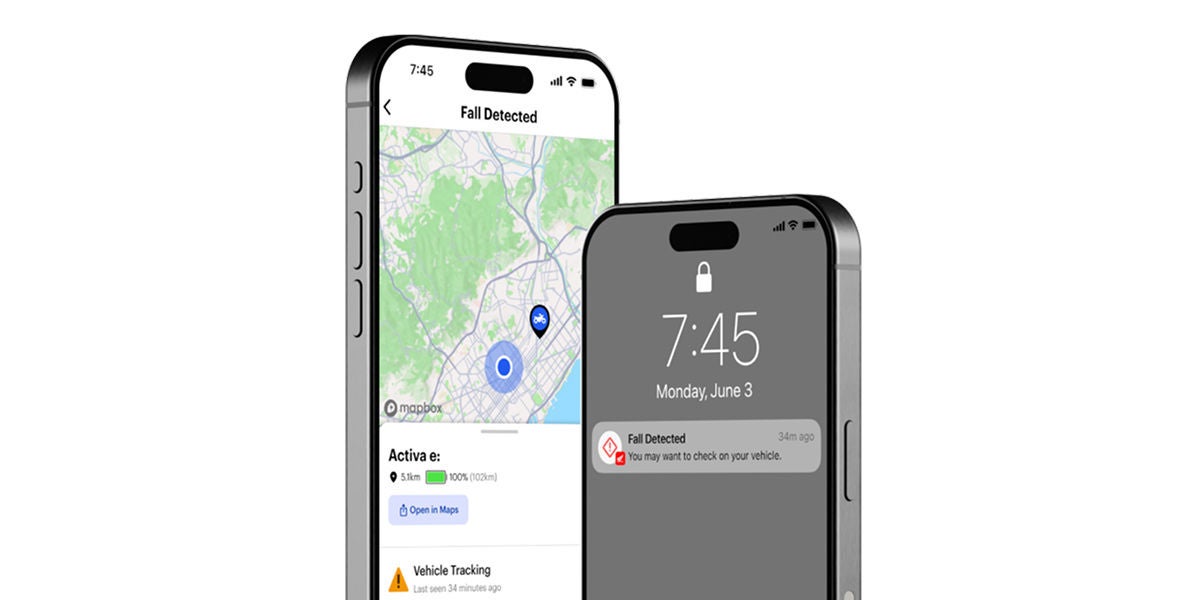
There are two types of alerts: Fall Alert and Potential Theft Alert.
- Q
-
A
A fall detection alert is displayed if the vehicle falls over.
If the fallen vehicle then moves more than 60m, both fall and theft alerts are displayed.
Both alerts remain active until you reconnect with the vehicle. - Q
-
A
It could mean the Theft Alert Service system can't communicate or hasn't been started.
- Q
-
A
Please go to your dealer to renew your subscription.
- Q
-
A
When your subscription is renewed, it should automatically reflect in the app's Theft Alert Service tab.
- Q
-
A
Make sure you are within the area of coverage of your network and reception signal is of good quality. If the issue persists please try connecting to Wi-Fi or using a different network.
- Q
-
A
Navigate to Vehicle Settings and select the "Name" option to enter your preferred vehicle name.
- Q
-
A
The app will default to English (US) if your device’s language setting isn’t supported.
- Q
-
A
Currently settings are not maintained after signing out and users will have to manually adjust settings after signing in.
- Q
-
A
Stop using the vehicle immediately and visit an authorized dealer.
- Q
-
A
OTA (Over-The-Air) notifications are push messages sent to users' mobile devices to inform them about available software updates for their vehicle.
- Q
-
A
Notifications are sent via the app when updates are available. Check regularly for new software releases.
- Q
-
A
No, you won’t be able to revert to previous versions of the application.
- Q
-
A
Depending on your internet connection, the update can take from 20 - 60 minutes.
- Q
-
A
Yes, both rider and owner accounts should receive OTA notifications for their associated vehicles.
- Q
-
A
Tapping an OTA push notification should navigate you to the Vehicle Info screen in the app.
Supported Devices
- Q
-
A
Android: The last 5 versions (e.g. Android 10-14)
iOS: The three latest versions (e.g. iOS 15-17)
Fully supported Android devices
Motorola Edge 40
OnePlus 12
OnePlus Nord CE 3 Lite
OPPO A5 2020
Oppo A77
Pixel 3
Pixel 6a
Realme 12
Realme 6 Pro
Redmi 12 5G
Samsung note20
Samsung Galaxy S22 Ultra 5G
Vivo V15 Pro
Vivo V23 5G *Some features may not be supported
Xiaomi 13T Pro
Xiaomi Mi A2
In addition, the smartphone must support Bluetooth BLE 4.2 or higher.
* Compatible smartphone models may change depending on the OS update status.
* Operational testing has not been performed on all smartphones.
* We will support more smartphone models through app updates.
Please go here for inquiries regarding your Honda RoadSync Duo